
 by
by  Coming soon to Actilud. Article under construction. Applies a mathematical formula. The formula can be applied to all calculable values.
f(a,b,c) = a * (cb)
Since the May 2026 update, the SUM, TOTAL, THRESHOLD instructions use the FORMULA instruction.
This instruction was programmed to allow the creation of original puzzles, such as the stock market game on Actilud. In this game, Alice sells 5 shares that she had previously bought. For each share, we know the name, the selling price, the unit purchase price, and the quantity sold. This allows us to create statements of the type:
- Styledsteel’s share price rose by €10: purchase price – selling price
- The sale of Foolishbuild shares generated a capital gain of €100: quantity * (purchase price – sale price)
In a formula, each computable value must be represented algebraically, by a letter. The first letter used must always be a , and subsequent letters, if any, must appear in alphabetical order. In our game, we have three computable values: a, b, c .
To obtain our statement of type (1), we set:
- a is the unit purchase price
- b is the unit selling price.
The formula is therefore: f(a,b) = ba
selling price – purchase price
We can see that this formula can generate a positive number (a capital gain), a negative number (a loss), or a zero result, if the stock was sold at its purchase price.
We can also decide that a is the selling price and b the buying price! In this case, the formula will be reversed: f(a,b)=a-b. The choice of values for a and b is programmable.
To obtain a statement of type (2), we set:
- a is the unit purchase price
- b is the unit selling price.
- That’s the quantity sold.
The formula is therefore: f(a,b,c) = c*(b-a)
quantity * (selling price – purchase price)
This gives us the amount of the capital gain, or loss, realized by Alice on a given share (here: Foolishbuild) at the time of the sale.
Note the operators: the “multiply” sign is not an “x” as usual, but the “*” sign. This is computer coding (to avoid confusion between the multiplication sign and the letter x).
The operators
- The standard operators are: + (addition), – (subtraction), * (multiplication), / (division), % (modulo)
- parentheses
- The comparison operators are: < (less), <= (less or equal), == (equal), != (not equa), > (greater), and >= (greater or equal). These operators return a Boolean value (true or false). Upon exiting the formula, the Boolean values are converted to numbers ( false is translated to 0 and true to 1).
- The unary operator ! (not): !a is true if a is false, false if a is true. !(a<b) is true if a >= b
- The ternary operator: expression? value_if_true : value if false – for example: (a-b)>=0?1:0 returns 1 if (a-b) >=0, 0 otherwise
- all the formulas available in the Javascript Math library, including:
- Math.sign(expression): returns -1 if the expression is negative, 0 if it is zero, 1 if it is positive
- Math.floor(expression): returns the integer part
- Math.round(expression): rounds the expression to the nearest whole number
- Math.abs(expression) returns the absolute value of the expression
Any operation that can be performed in Javascript, and that fits in a single line, can be programmed.
Since the introduction of FORMULA, SUM is coded as f(a,b) = a + b and TOTAL, in the game “The Orchard”, is coded as f(a,b,c) = a + b + c. The SUM and TOTAL instructions are retained for compatibility reasons, and also because they are easier to program than FORMULA! Note, however, that FORMULA does not need to define “summable” series, as all computable series are available.
Attention !
All calculations are performed on real numbers. Therefore, rounding approximations may occur in complex formulas. In such cases, use Math.round.
The parameters
Formula name
This is the name that will be displayed in the formal proposal. For example, for point (2), you can call your formula “GAINVALUE” (only letters and numbers are allowed). For point (1), you can call the formula “VARIATION” which reflects the change in the unit price between the sale and the purchase.
The summarizing statement will be, for example:
Foolishbuild: GAINVALUE(unit purchase price, unit selling price, quantity) = 500
Styledsteel: VARIATION (unit purchase price, unit selling price) = -20
Reference series
Reminder: A series is formed by a header and values. By default, the series name is the same as the header name. Example: The purchase price series is formed by the header purchase price and the values {10, 20, 30, 40, 50}.
The reference series is the series to which the formula is applied. In our example, it’s the name series, which contains Styledsteel or Foolishbuild . You can choose a specific series or let the algorithm choose randomly.
The random selection is made from the series not included in the formula at the time of its execution. In case (1), the variable a is always the purchase price and b is always the selling price. The reference series can therefore be chosen between “stock name“ or “quantity” . The choice will be made randomly from the two possibilities. If the choice is made from the quantity, a statement of the type will be produced:
30: VARIATION (unit purchase price, unit selling price) = -20
The lot of 30 lost €20 per share.
Series a, b, c, …
This is where we indicate the series in which the variables a, b, c,… will find their values.
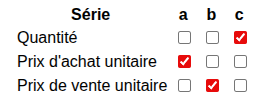
This is a table of checkboxes. Each column corresponds to a variable in the formula: a, b, c, … Each row is a computable series in our puzzle (so in our case, the stock names are not included). The columns must be filled in from left to right. It is forbidden to leave a column empty between two filled columns. Therefore, we must start with a, then b, and so on.
In our example, case (1), formula f(a,b) = b-a, we will check the boxes (a, unit purchase price), ( b, unit selling price) . For case (2), formula f(a,b,c)=c*(b-a) , we will check (a, unit purchase price) , (b, unit selling price) , (c, quantity) .
Select multiple series for the same variable
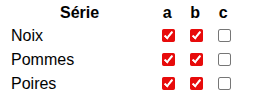
If a variable is associated with multiple series, the algorithm processes each selected series, provided the series is not already chosen by the preceding variables. To illustrate this, let’s consider the orchard puzzle where we have three computable series concerning the weight of walnuts, apples , and pears . We want to sum two series at random. We will choose the three series for `a` and `b`. The calculations will be performed on `(walnuts, apples), (walnuts, pears), (apples, pears)`, with `a` and `b` always chosen from different series. Since the formula is commutative, there are only 3 possible combinations. Here, the variable `c` is not used in the formula: therefore, we leave column `c` empty .
Unused variable in the formula
Empty columns are always located on the last variables. The variables associated with empty columns are not used in the formula.
f(a,…)=
Formula in algebraic form using the variables a, b, c. Your formula will be compiled in real time and tested on all possible combinations generated by your series. Therefore, carefully check the syntax and pay attention to potential problems, such as division by zero!
The formula is commutative.
Check the box if the formula is commutative. This is the case for instructions of the type SUM: a+b. Indeed, a+b = b+a. This speeds up calculations by avoiding unnecessary combinations. In the case of the orchard puzzle , commutativity will only produce sums of the type (walnuts, apples), (walnuts, pears), (apples, pears). Other possible combinations, such as (pears, apples), will be ignored because they are already handled by the commutative equivalent.
Working with constants
In the general case, the constant is written directly into the formula:
a < 30
returns 1 for all values of a less than 30, and 0 for all those greater than or equal to 30.
These values can then be filtered (see below), to retain, for example, only the values of 1.
We may wish to choose the constant from the values in a series, without knowing that value precisely. In this case, we use the constant K, which must be associated with one of the variables already defined.
a < K
returns 1 for all values of a less than K, K being chosen from the values of a.
To use the constant K in the formula, check one of the boxes located under the variables.
Note: K is not actually a constant, even though that’s how you should treat it when writing the formula. In reality, all possible values of K will be handled in your formula, just like variables.
The filters
There are three filters that allow you to accept or reject a formula, depending on its result, the number of combinations it creates, or the impact it has on the game grid.
Accepted results, excluded results:
You can request that your formula return a result chosen from a set. Enter all desired results, separated by commas, in the accepted field.
Some results are undesirable. You can exclude them in the corresponding field. In the stock market puzzle, the value 0 is excluded for formulas because we want to avoid statements that contain gains of 0.
Numbers are in standard computer format: a continuous sequence of digits. If the number is a decimal (with a comma), use the decimal point on the numeric keypad.
By default, leave the fields empty.
Combinatorial threshold
Several values for a, b, c… can produce the same result. For example, our function VARIATION=b-a can give a result of 10. This result is possible for several values of (a,b): (10,20); (20,30); (30,40); (40,50), giving 4 possible pairs. We say that the size of the combination is 4. A result of 40, however, is only possible for one pair: (10,50). The size of the combination here is 1.
The combinatorial threshold defines the acceptable size of the combination generated by the formula.
Threshold >= 0: the size of the combination must be strictly greater than the threshold. The value 0 is the default: all results are accepted, regardless of the size of the combination – a result requires at least one pair. A value of 1 makes the game more difficult: indeed, only one pair for a given result allows the player to find the values and mark true signs in the grid, because there is only one solution. See the result 40. The higher the threshold, the more difficult the game. But be careful not to set it too high, or the formula will become ineffective!
Threshold <0: the number of combinations must be exactly as specified, in absolute value: in our example, a combination of -1 will only allow the values (10, 50), with a result of 40. This can be useful for creating easy puzzles. You must ensure that the threshold does not contradict the list of accepted or excluded results.
Moves limit
During the formula evaluation, all cases are processed in a random order. This random order means that the items are not processed in the order they appear in their series. Each accepted result is recorded: this is a possible “move.” Once all possible moves have been generated, or a maximum of 150 moves has been reached, the software selects a single move from the list, the one with the highest evaluation score.
If you consider all possible cases, then, inevitably, the evaluation will only retain the moves it prefers… and will often produce the same statements. Thus, in “standard” mode, the software prioritizes “true” over “false” and Boolean values. It will therefore only retain the most trivial solutions, those that always produce “true” in the grid. For example, if you perform a comparison of the type a<K, and if a is a number between {10, 20, 30, 40, 50}, the software will retain the formulas that satisfy a<20, because they create a “true” in the cell associated with “10”, which earns more points in the evaluation.
To counter this effect, the number of generated moves can be limited. This limit can be drastic. For example, to simulate the THRESHOLD instruction, the formula a<K or a>K is indeed used, but the number of moves is limited to 1. This creates more variability in the statements. Furthermore, the calculations are considerably accelerated since formula evaluation stops as soon as a move is found. This isn’t necessarily the best possible move, but at least trivial statements are avoided.
Grid coding
This occurs after the previous filters have been applied. The formula is effectively applied to the grid. This can produce boolean values, false values, or even, if there is only one pair, true values. Note that the effects on the grid depend on its state at the time the instruction is executed. If other instructions have been executed beforehand, they may affect the grid’s population.
Immediate coding should produce a change in the grid. Delayed coding should produce no change in the grid. This makes the formulas more difficult.
The coding was implemented to maintain compatibility with the TOTAL instruction. Note, however, the imprecision of this directive. The order in which the statements are created does not necessarily correspond to the order the player will use. For a player, a statement may very well cause a change in the grid, even though it did not produce any change for the program at creation’s time.

Isolated: if the instruction is running in isolated mode, the designer does not choose rows that already contain signs, including booleans.

Maximum: the maximum number of times this instruction can be executed.